Sunflower
See what filled your disk, including the part macOS will not name.
- Free
- macOS 15 or later, Apple silicon
- Notarized, 2.1 MB
- No account
What Sunflower does
Your Mac says the disk is nearly full. System Settings draws you a bar, one block of it is called System Data, it is wider than everything beside it, and clicking it does nothing. Every disk analyser on the market will walk the file tree and draw you the result, and every one of them goes quiet at that block, because the space it stands for is not in the file tree.
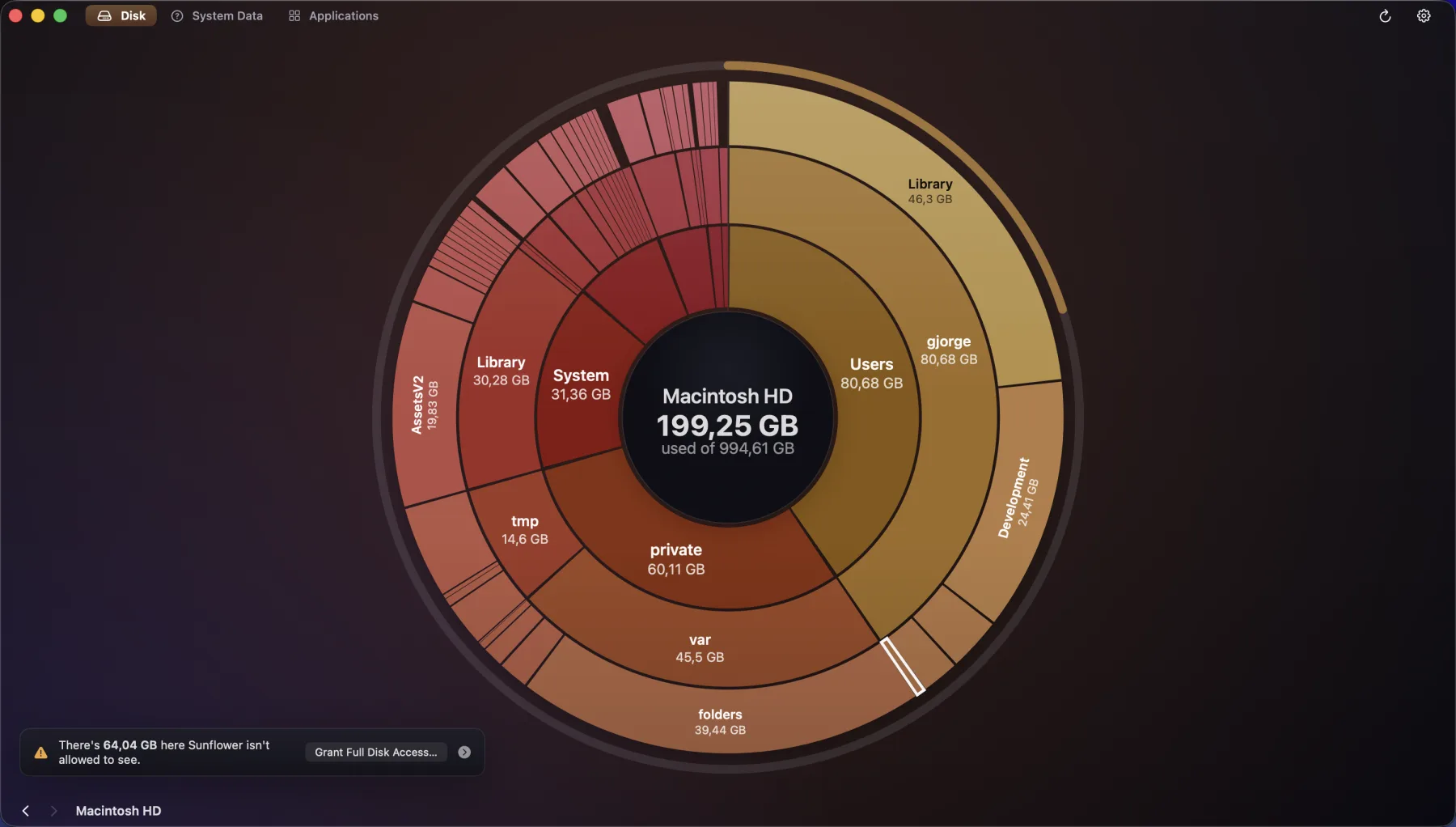
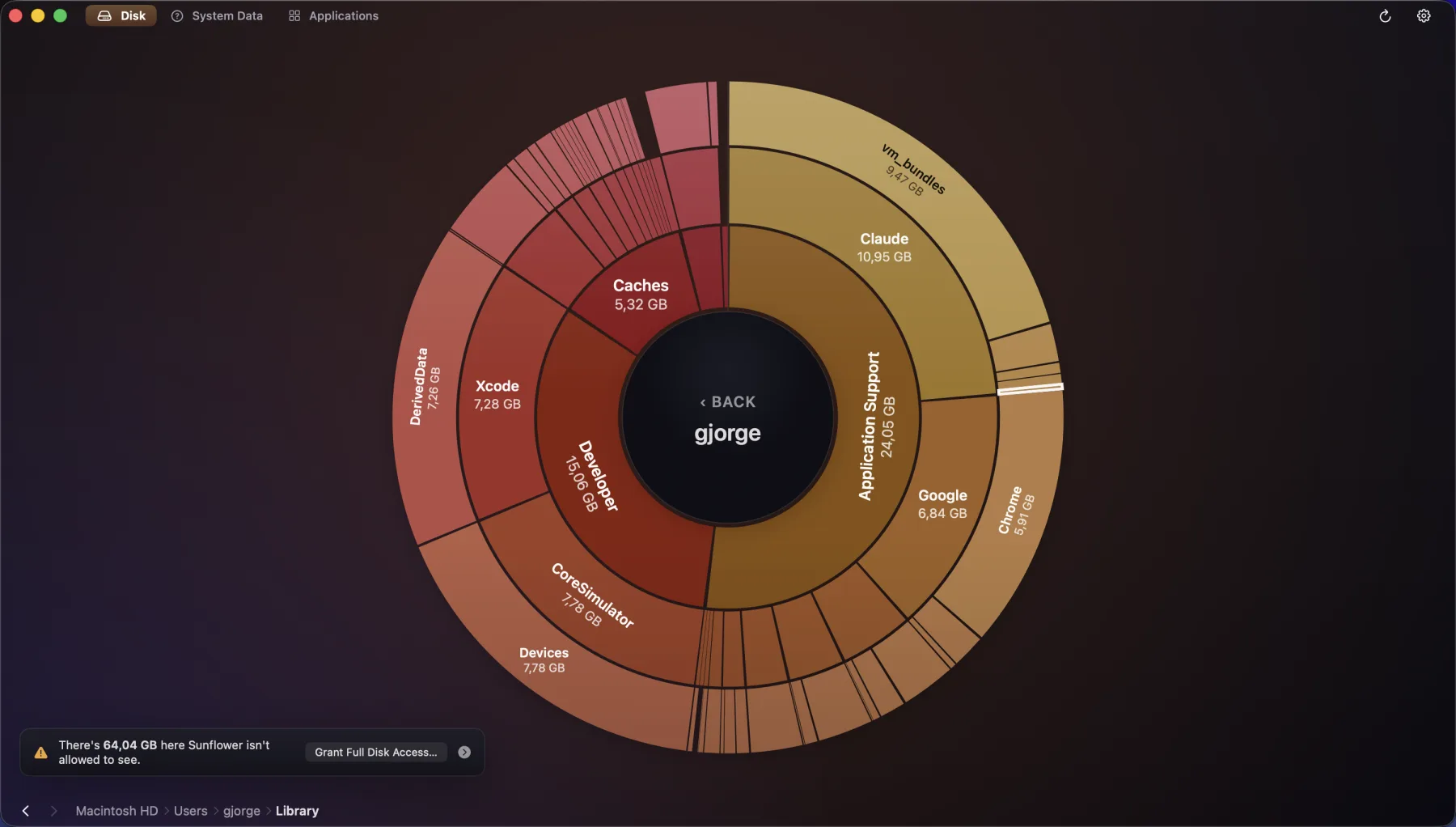
Sunflower draws the disk as one ring: the folder you are looking at and two levels beneath it, biggest first, with how full the disk is as a thin arc around the outside rather than a grey mass through the middle. Click a wedge and the panel names it, sizes it and lists what is inside it largest first. Click a folder in that list and the ring goes there. If rings are the wrong shape for what you are comparing, the same scan is also a treemap and a plain sorted list.
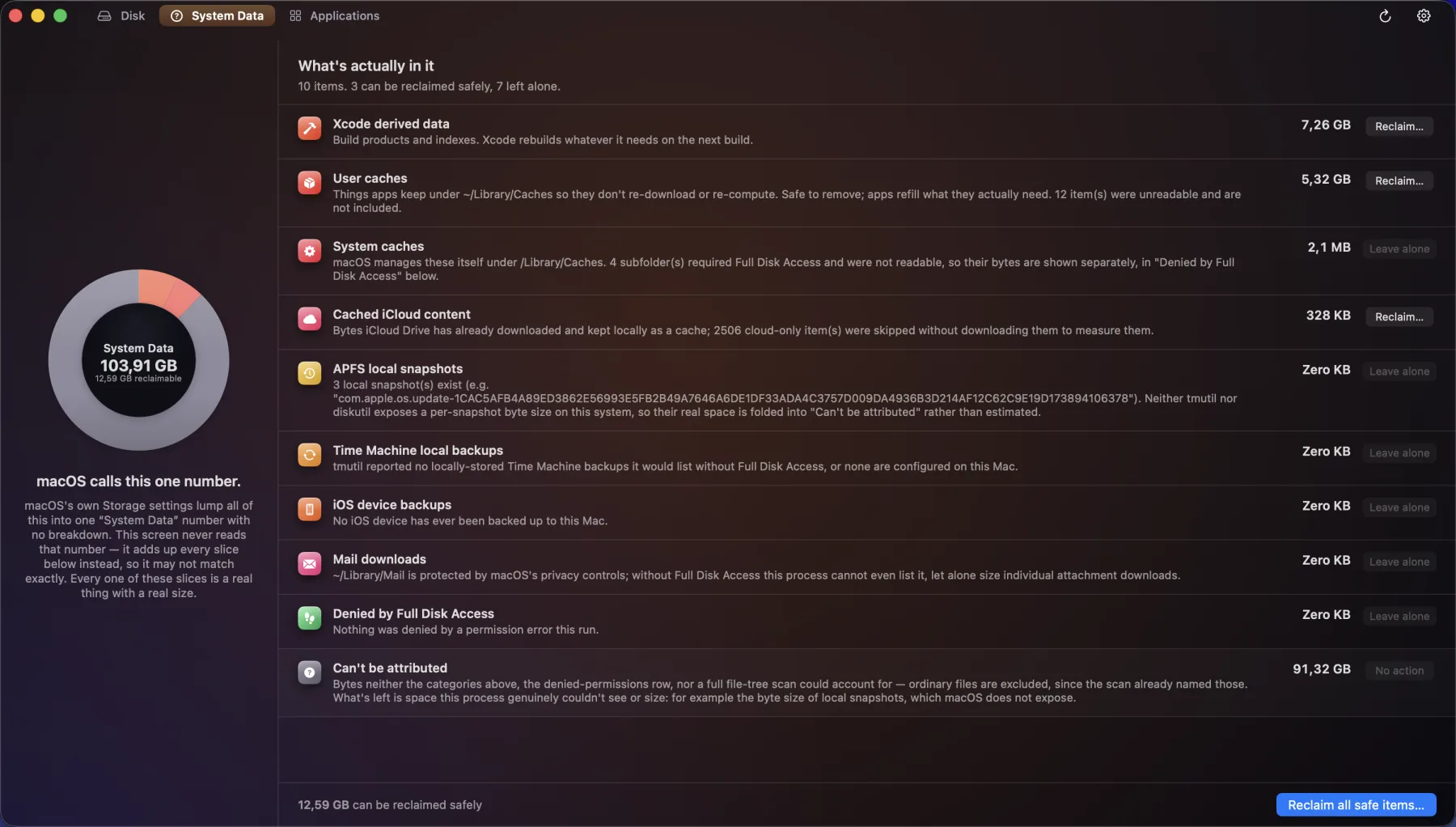
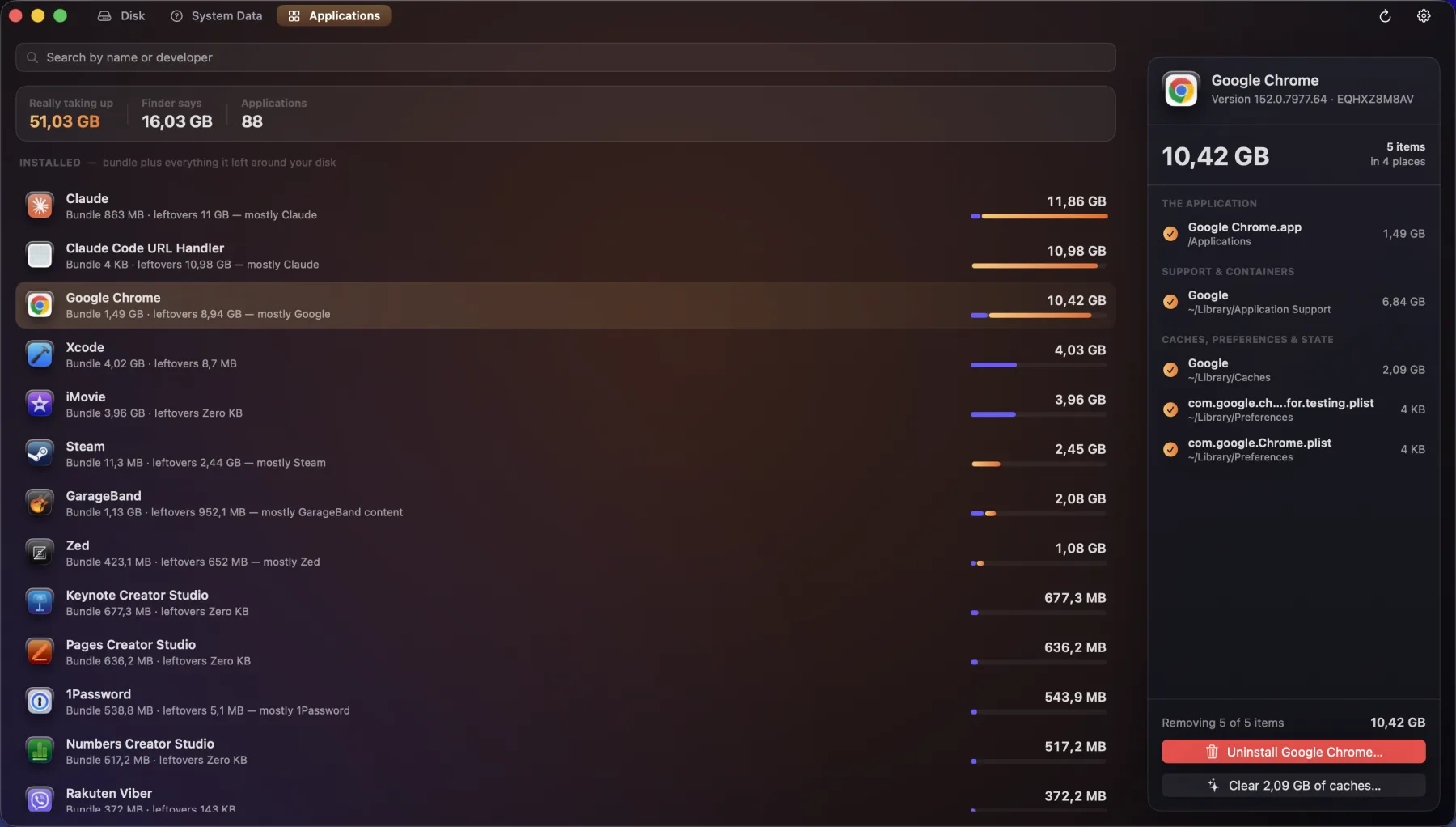
The part that is not in any of the others is the breakdown: caches, local snapshots, Time Machine and iOS backups, Xcode derived data and cached iCloud content, each named and sized and explained before you touch it, and one honest row for what genuinely cannot be attributed instead of a confident guess. The applications list works the same way, sizing each app by its bundle plus every support folder, container and cache it left elsewhere.
The parts worth knowing about
Not the whole list - the app has more screens than a page like this can usefully hold. These are the decisions that make Sunflower different from the last one you tried.
-
One ring, two levels down, at once
The chart shows the folder you are in and two levels beneath it together, each wedge sized by its share of the space. Whatever filled the disk is the first thing your eye lands on rather than something you have to go looking for.
-
System Data, itemised
macOS reports one opaque number and leaves you guessing. Sunflower splits it into caches, backups, derived data and the rest, says in plain English what each one is, and offers a safe way to reclaim the ones that are safe to reclaim.
-
What it cannot prove, it says it cannot prove
APFS snapshots can be listed but no public API will size them, so their bytes sit in a row that admits it cannot account for them. No invented figure, no health score, no percentage out of a hundred.
-
Apps sized by what they really cost
Finder says Xcode is twelve gigabytes. The derived data, caches and support folders elsewhere on the disk with its name on them are not in that figure. Every installed app is listed by bundle plus leftovers, largest first, and uninstalling takes all of it.
-
Or clear the caches and keep the app
The thing you usually want from software you are still using. Clear the eleven gigabytes Xcode left lying around and leave Xcode installed; it rebuilds what it needs the next time you open a project.
-
Files that live in iCloud stay there
A cloud-only file takes no space on your Mac, so it counts as zero and is never downloaded in order to be weighed. Two copies that share the same bytes are counted once and flagged rather than added up twice.
-
Rings, a treemap, or a plain list
Rings are for browsing. A treemap compares many uneven folders by area. A list never folds anything away for being small. Same scan, three ways of reading it, and the choice lives in Settings.
-
Every disk you have mounted
External drives appear beside the startup disk, each with how full it is, so you can pick the one that is actually filling up rather than the one the app assumed you meant.
Sunflower, running
Pricing
There is one tier and it is the whole app. Nothing is held back to be unlocked later, which also means there is no version of Sunflower that can see something and refuse to tell you about it.
- SunflowerFree
The whole app. No licence key, no in-app purchase, no trial clock, and no account to create.
- Every screen, every disk, nothing held back
- Notarized by Apple, from its own site
- No account, no analytics, no server
- Nothing on your disk is read until you press the button
What you need
- Mac
- macOS 15 or later
- Processor
- Apple silicon only
- Latest version
- 1.0
- Size
- A 2.1 MB disk image, with its SHA-256 printed beside it
- Where it comes from
- Its own site, notarized by Apple. Not the Mac App Store, because the sandbox blocks most of what it does.
- Permissions
- It scans with whatever access it has and says what it could not see. Full Disk Access widens that, and the app will take you to the right pane to grant it.
- Account
- None. There is nothing to sign up to.
- What it deletes
- Only what you tick, always to the Trash, never anything under /System.
Free, from its own site